BNPL Widget (SDK)
This guide provides detailed instructions on how to integrate the Backd B2B Buy Now Pay Later (BNPL) widget into your JavaScript application.
*Note: Chat with our team at bnplsupport@backd.com to get signed up and we will provide the necessary API Keys.
Step 1: Include the Widget Script
First, add the BNPL widget script to your HTML file. This script is necessary for loading the widget.
<!-- For Prod -->
<script src="https://widget.bnpl.backd.com"></script>

<!-- For Sandbox -->
<script src="https://sandbox.widget.bnpl.backd.com"></script>
Step 2: Initialize the Widget
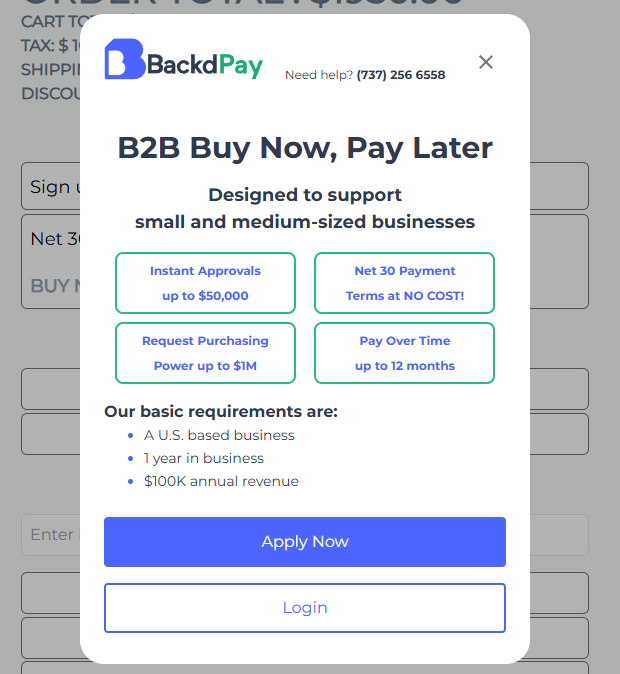
Next, you need to initialize the widget with order details and event handlers. This initialization will also open the widget in a modal (default) or a fullscreen redirect (redirect flow) based on parameter(s) in the mode object.
N.B. It is recommended to add the initialization function (widgetBackd.initializeWidget(...)) to a "Checkout with BackdPay" button click.
Order Object and Callbacks
This table describes the order object and necessary callbacks. Please refer to the Order Object for a detailed overview of the order object.
| Parameter Key | Format | Required | Description |
|---|---|---|---|
order | Object | ✅ | The order object contains detailed information about the order including the merchant, mode, shipping, billing, items, merchant_order_id, merchant_order_status, cart_amount, tax_amount, shipping_amount, discount_amount and order_total. |
onSuccess | Function | ✅ * | Called when the widget completes successfully. Typically, you would proceed with the checkout success process here. *Note: When using the redirect flow, this callback are not required. |
onClose | Function | ✅ * | Called when the widget is closed before completion. You can display a message or handle it as needed. *Note: When using the redirect flow, this callback are not required. |
onFail | Function | Called if the widget fails. You can display an error message or handle the failure accordingly. |
The following code snippet demonstrates how to do this:
const order = {
  merchant: {
    public_api_key: "518ce188-8295-422c-a4a2-8329ffd40341",
    name: "Your Customer-Facing Merchant Name",
  },
  mode: {
    type: "modal",
    order_success_url: "",
    order_close_url: "",
  },
  shipping: {
    name: {
      first: "Joe",
      last: "Doe",
    },
    address: {
      line1: "123 Main St",
      line2: "Floor 1",
      city: "Austin",
      state: "TX",
      zipcode: "78704",
      country: "USA",
    },
    phone_number: "4153334567",
    email: "joedoe@123fakestreet.com",
  },
  billing: {
    name: {
      first: "Joe",
      last: "Doe",
    },
    address: {
      line1: "123 Main St",
      line2: "Floor 1",
      city: "Austin",
      state: "TX",
      zipcode: "78704",
      country: "USA",
    },
    phone_number: "4153334567",
    email: "joedoe@123fakestreet.com",
  },
  items: [
    {
      display_name: "MacBook Pro",
      sku: "ABC-123",
      unit_price: 3000,
      qty: 3,
      item_image_url: "http://merchant.website.com/images/macbook-pro.jpg",
      item_url: "http://merchant.website.com/products/macbook-pro.html",
    },
  ],
  merchant_order_id: "JKLMO4321",
  merchant_order_status: "processing",
  cart_amount: 9000,
  tax_amount: 100,
  shipping_amount: 50,
  discount_amount: 200,
  order_total: 8950,
};

widgetBackd.initializeWidget({
  // Order Object needed to initialize widget
  order: order,
  onSuccess: function () {
    // Function called upon successful completion of order
  },
  onClose: function () {
    // Function called when user closes widget before completion
  },
  onFail: function () {
    // Function called when a terminal error occurs
  },
});
The widget initialization includes event handlers for success, close, and failure events. Customize these handlers as needed to suit your application's requirements.
- onSuccess: This function is called when the widget completes successfully. This means that the customer has completed their order.
- onClose: This function is called when the widget is closed before completion. You can display a message or handle it as needed.
- onFail: This function is called if the widget fails. You can display an error message or handle the failure accordingly.
Step 3: Handle onSuccess callback
The onSuccess callback will share two parameters, the backd_order_id and the merchant_order_id. The backd_order_id will have to be stored to use in subsequent API calls to the BNPL API for post order management.
After onSuccess is triggered, the merchant has to the place the order as confirmation of receipt of parameters of order by sending a post call to the order_placed endpoint.
Have a look at the Status Flow for the next steps of the order and getting the order confirmed 🎉 (end status of order).
By following these steps, you will successfully integrate the BNPL widget into your application, providing your customers with a seamless "Buy Now, Pay Later" experience.